ASSET PIPELINE & PYTHON SCRIPTING

For small projects, you can get by with hand-maintained spreadsheets for audio assets. Once the project grows to thousands of assets, this approach begins to fall apart quickly. My approach is a Python script that sweeps the Asset Registry on demand and reports every audio asset in the project, from source waves down to submix effect presets, as a raw CSV for pipelines and a filterable report for an audio team. The same pipeline runs the write direction with a convention checker that turns the naming rules into reviewable rename plans, and a guarded batch apply script executes them with a full audit trail.
Python · Asset Registry · CSV + HTML Reporting · Batch Conformance
01 | Inventory Report
The Deliverable, Running
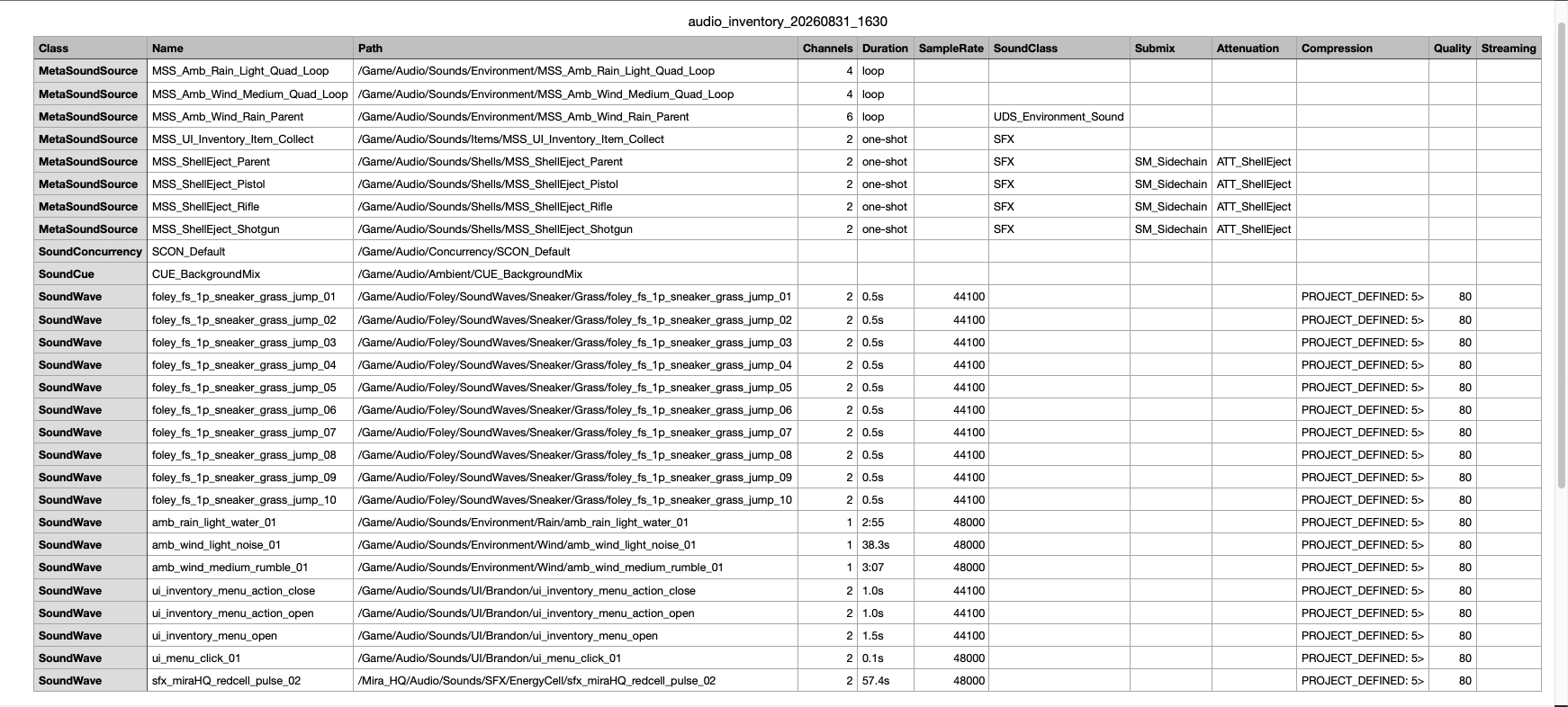
This is a live snapshot of an actual report, generated from the project by one editor command. Class filters follow the editor's own asset color coding, search covers names and paths, and every column sorts. Sound waves carry deeper properties: channel count, duration, sample rate, and compression settings, pulled directly from the assets.
02 | Registry-First Design
Query Everything, Load Almost Nothing
The sweep runs against the Asset Registry, so listing thousands of assets is instant. Individual assets are only loaded where a class earns deep columns, which keeps the tool fast enough to run casually instead of scheduled. For a UE project in particular, Submix and Source effects are matched as class families by prefix, so every preset type is covered without enumerating them.
registry = unreal.AssetRegistryHelpers.get_asset_registry()

for root in SEARCH_ROOTS:
    for asset_data in registry.get_assets_by_path(root, recursive=True):
        class_name = str(asset_data.asset_class_path.asset_name)
        if not is_audio_class(class_name):
            continue

        row = identity_row(asset_data)

        # Deeper properties only for classes that need them.
        # Loading every asset is what makes other tools slow.
        if class_name == "SoundWave":
            asset = unreal.EditorAssetLibrary.load_asset(row["Path"])
            if asset:
                row.update(describe_sound_wave(asset))

        rows.append(row)
03 | Running In the Editor
One Command
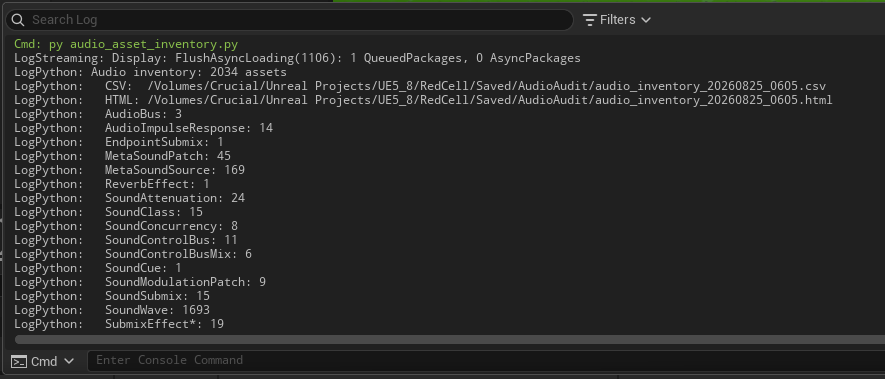
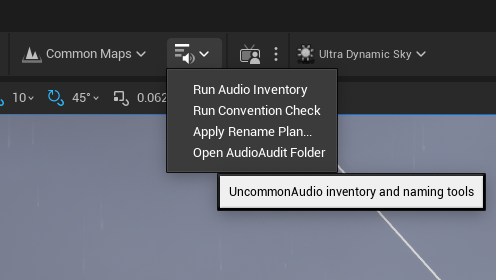
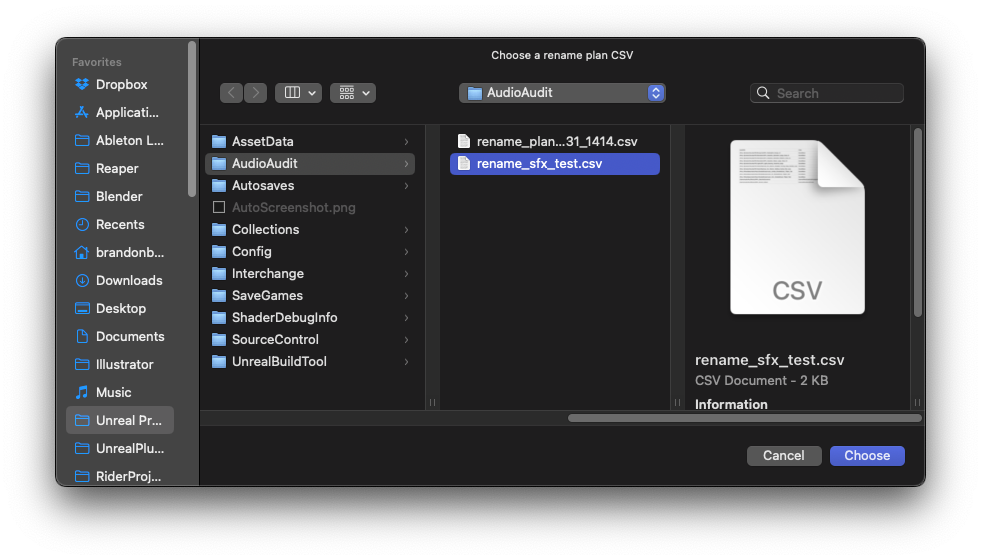
The tools live inside my UncommonAudio plugin, so any project that enables the plugin gets the whole pipeline. Each project adds one small file that tells the scripts where to search and what its naming rules are; everything else stays in the plugin. The plugin also adds an Audio Audit dropdown to the editor toolbar, so everything runs from a menu: run the inventory, run the checker, pick a reviewed plan to apply, or open the report folder. Each run writes a dated CSV and HTML pair into Saved/AudioAudit and logs the per-class counts, so a quick glance shows the project's audio footprint growing over time.
04 | Audit to Spotting Sheet
The Gap Is the Task List
A spotting sheet is just a list of every sound a level needs, one row per sound, with a status that moves from Needed to Mixed. The inventory is a list of every sound that actually exists in the project. Compare the two and you have the to-do list. And because the inventory is generated straight from the engine, that comparison never drifts. I'm checking the plan against what's really in the project, not an old spreadsheet.
None of this is Unreal-specific. The Asset Registry is where the data comes from here, but the same loop works in any engine: audit what exists, plan the changes, apply them in a batch.
05 | Batch Processing
Audit, Plan, Apply
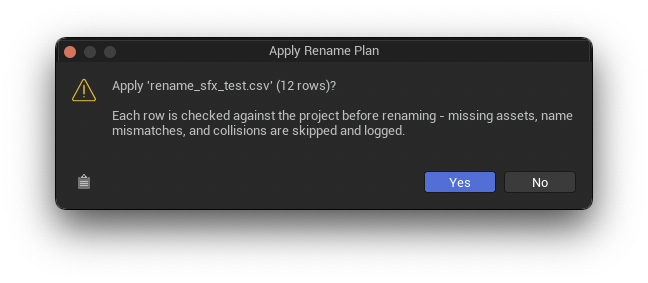
Renaming is split into three scripts on purpose. The checker reads the naming rules and writes a plan: every asset that breaks the convention, its current name, and the proposed new one, with a caution flag on MetaSounds since their internal references need extra care after a rename. It also recognizes old naming styles, so a wave named years ago gets proposed into the right category instead of a generic default. That plan is just a CSV. I review it, edit it, and delete anything I don't agree with. Only then does the apply script run, and it makes no decisions of its own: each row is checked against the project first, anything that doesn't match is skipped, and every run writes a result file showing exactly what happened.
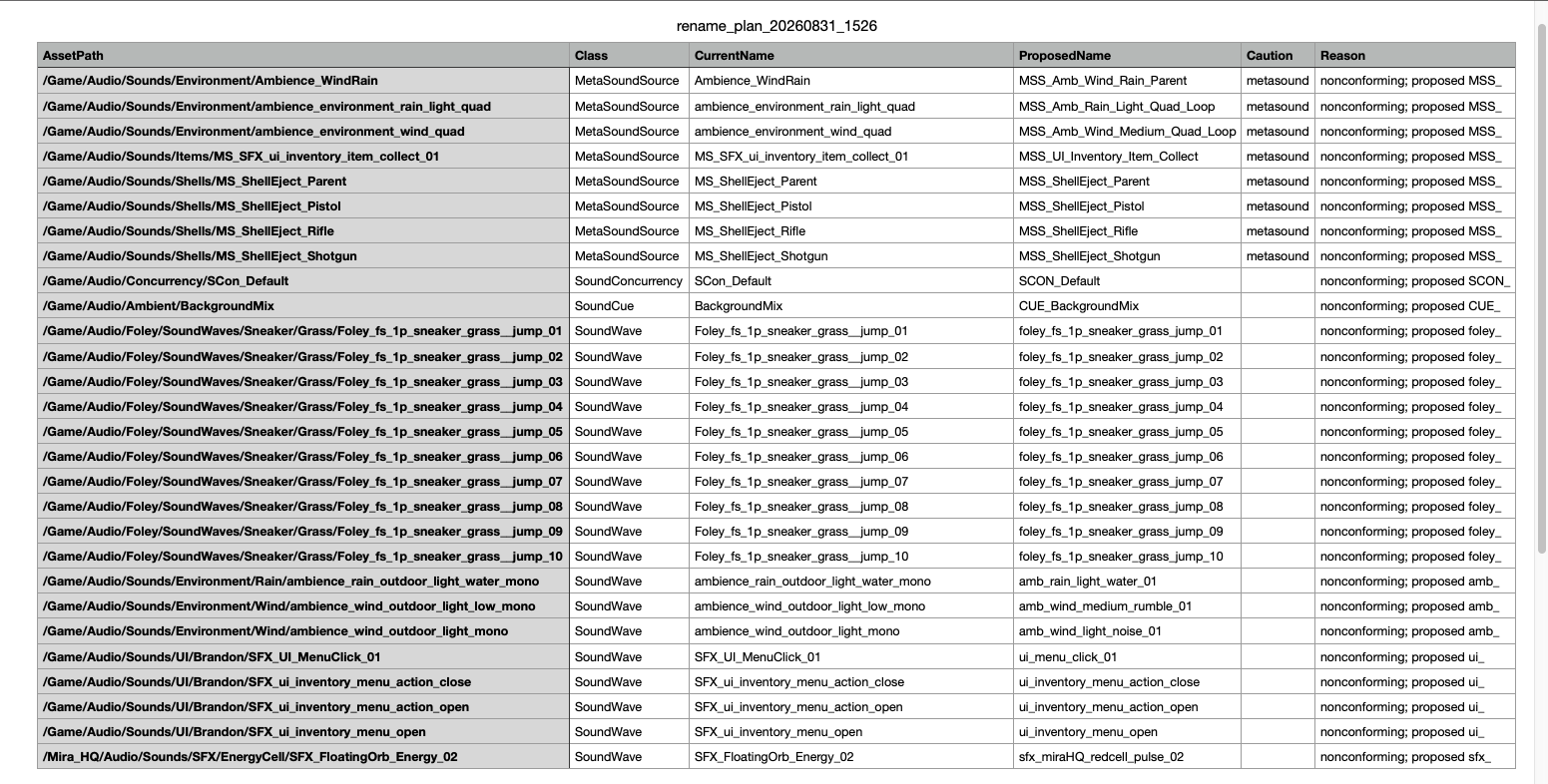
Those checks earned their keep on the first real batch: a spreadsheet edit corrupted the current-name column in a plan, and instead of renaming the wrong assets, the apply pass skipped all sixty-six rows and touched nothing. Ten lines of Python rebuilt the plan, and the batch ran clean. That's why the plan stays a plain CSV.
06 | Library-Side
The Same Discipline, Outside the Engine
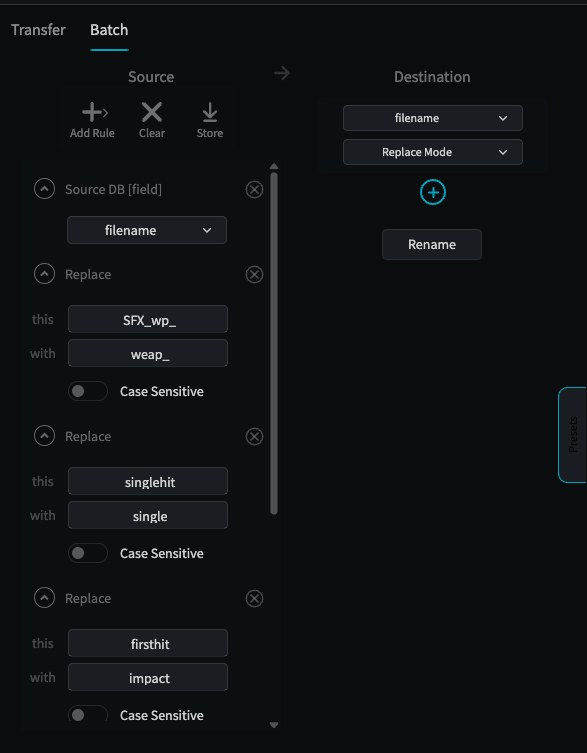
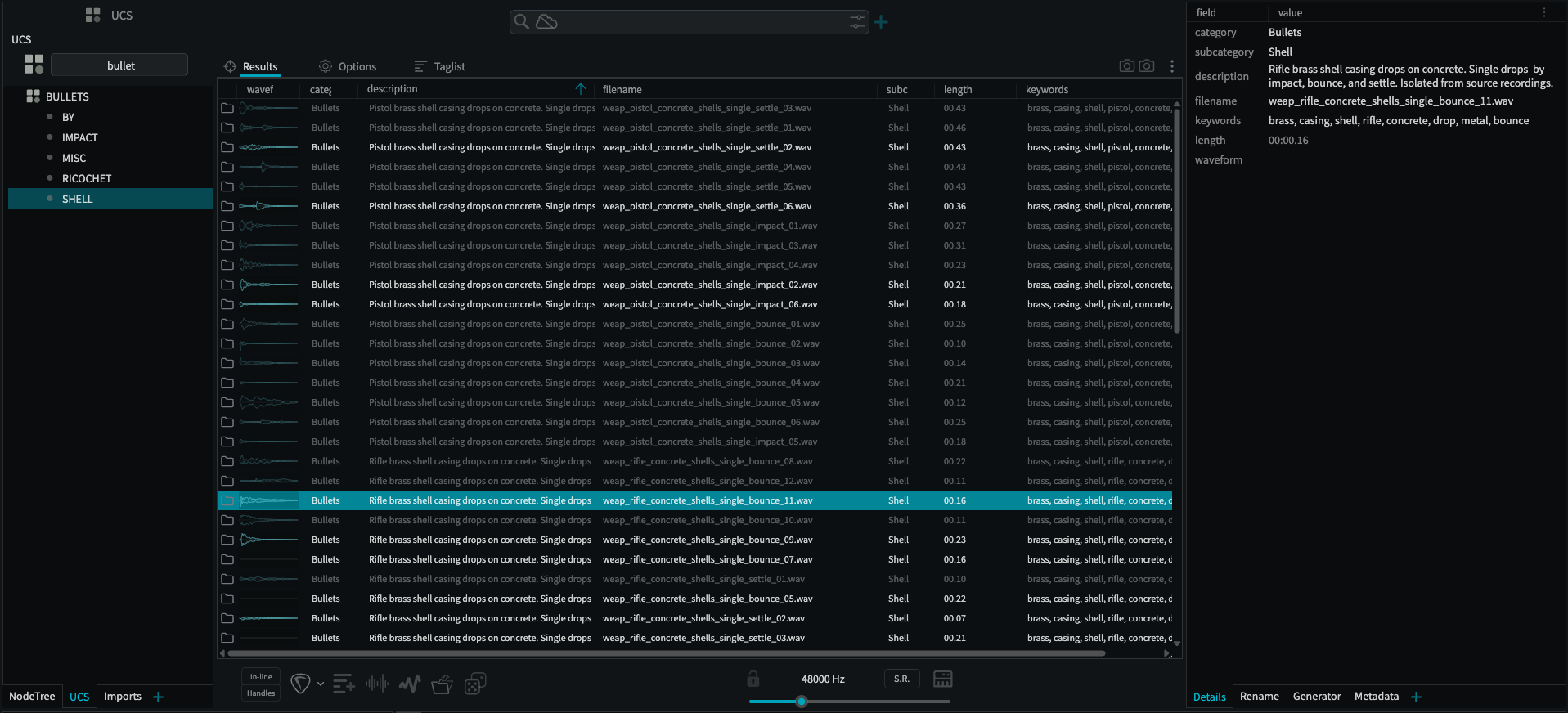
The same naming discipline carries over to my sound libraries outside the engine. In BaseHead, the rename rules are stored as batch presets with a live preview of the result before anything is touched. One preset applies the naming convention; another strips the session suffixes Ableton adds on clip consolidation, so anything I bounce out of a session is one click from a clean name. Libraries get categorized to UCS, with the recording chain embedded in each file's metadata. And in Ableton itself, one of my main design DAWs, I wrote a clip renaming extension that names variations from a template with auto numbering, so most exports come out already named right instead of getting fixed later.